
Worked Example A: Single-Objective Daylight Optimization
This step-by-step tutorial demonstrates how to configure a single-objective optimization workflow in Grasshopper using the ADO-D22 building envelope benchmark to maximize natural daylight autonomy.
22 variables, evaluated by the GBR–ANN surrogate trained on the Zorn et al. (2025) dataset. Also the starting point for Examples A and B.
In the file, choose the single-objective mode of SH_BenchmarkADO (right-click, problem mode) to follow this example. All files: Demo Definitions.
Tutorial Goal
Maximize the Useful Daylight Illuminance / Daylight Factor (
Step 1: Place the Problem Component
- On your Grasshopper canvas, drop the SH_BenchmarkADO component from the 3. Benchmark ribbon panel.
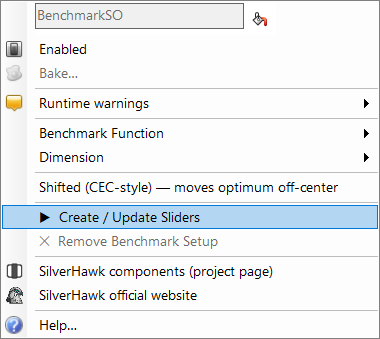
- Right-click the component and select Create / Update Sliders.
- SilverHawk automatically generates the 22 decision sliders (
to ) representing envelope geometry, window-to-wall ratios (WWR), and shading louvers.
Step 2: Configure the Maximization Objective
- Add an SH_Objective component from the 2. Utility panel.
- Connect the F3 (Daylight Factor) output of
SH_BenchmarkADOto the input ofSH_Objective. - Right-click
SH_Objectiveand select Maximize (▲).- Notice that the component displays a magenta
▲ MAXbadge. - No negative multiplication (
) is necessary.
- Notice that the component displays a magenta
Step 3: Connect and Configure the Solver
- Place SH_Solver on the canvas.
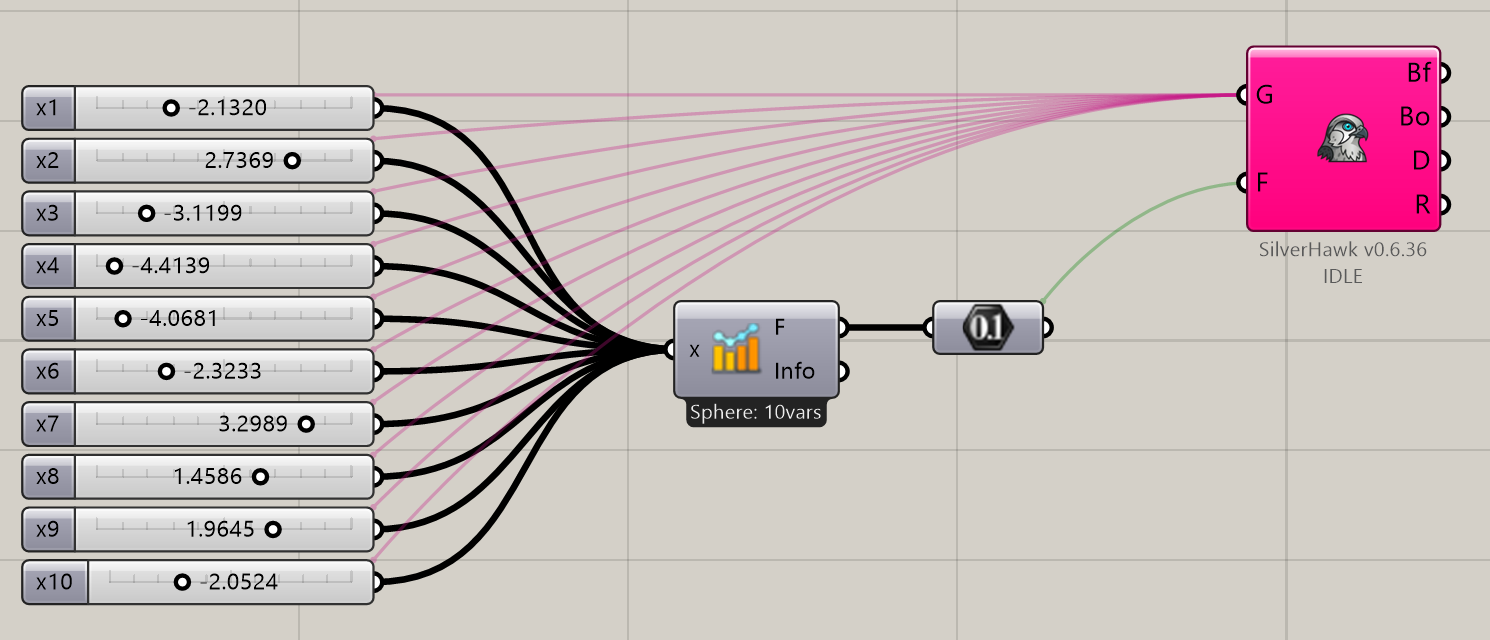
- Wire all 22 sliders to the G (Genes) input.
- Wire the output of
SH_Objectiveto the F (Fitness) input. - Double-click
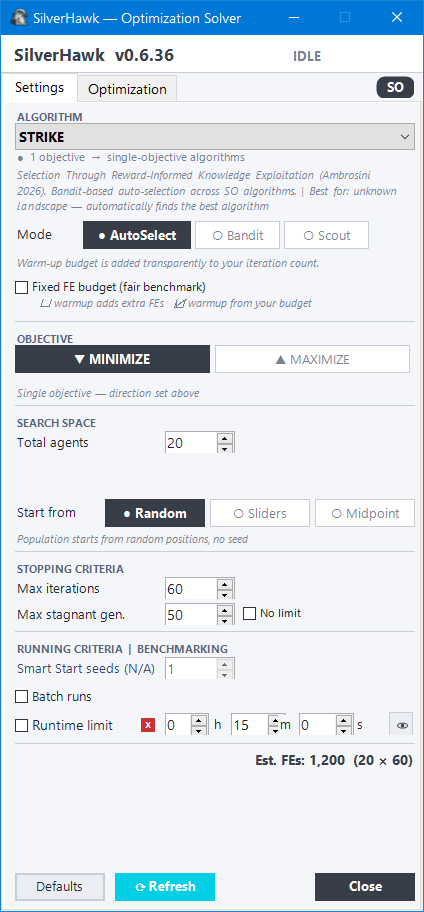
SH_Solverto open the interface:- Settings Tab:
- Algorithm: Select
STRIKE(recommended for autonomous selection). - FE Budget: Enter
150. - Suppress Preview (Eye Icon): Click to enable (accelerates runtime by pausing viewport redraws).
- Algorithm: Select
- Settings Tab:
Step 4: Run and Reinstate
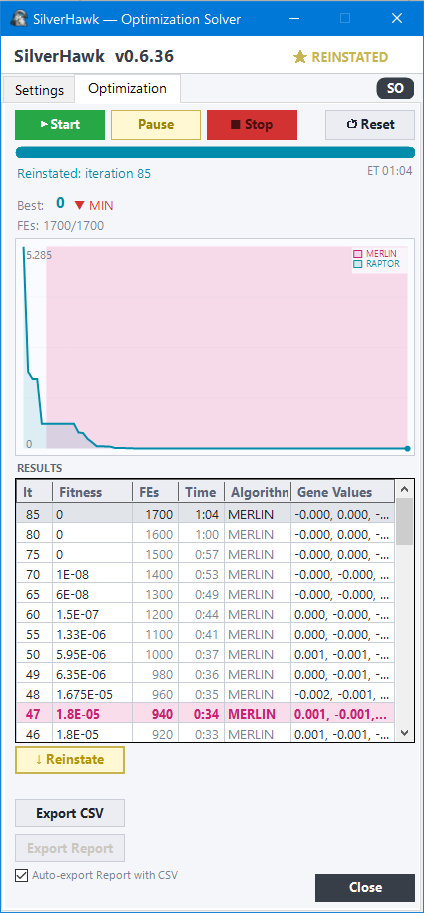
- Switch to the Optimization tab.
- Click Start.
- Watch the real-time convergence curve climb upward towards higher daylight factor values.
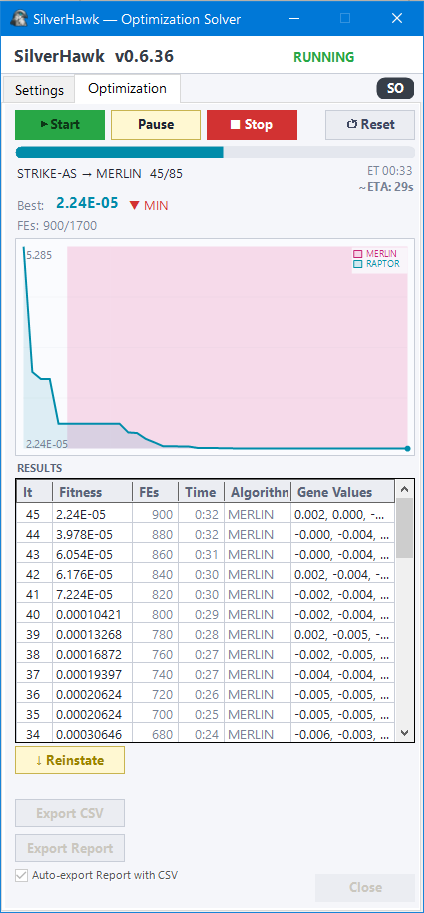
- When the status reaches DONE, select the top row in the results table and click Reinstate.
- The 22 number sliders on your canvas immediately snap to their optimal coordinates!
DOWNLOADABLE DEFINITION
You can replicate this tutorial directly in Rhino 8 / 9 using the built-in benchmark components without needing external daylight simulation plugins installed.