
Results, Export and Reinstate
SilverHawk provides a seamless cycle between running an optimization, inspecting data, exporting results for academic publication, and reinstating specific candidate designs back onto the Grasshopper canvas.
Exporting a Run
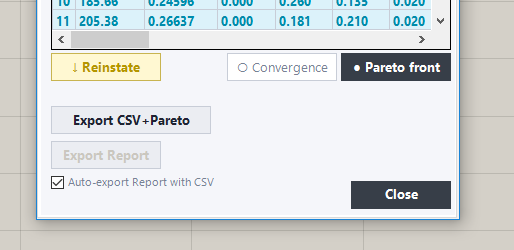
The buttons at the bottom of the Optimization tab export the current session results:
- Export CSV (SO) or Export CSV+Pareto (MO): Writes the complete run file in CSV format.
- Export Report: Generates a clean text report with the same filename and suffix
_report.txt. - Auto-export Report with CSV: When ticked, the text report is automatically generated every time a CSV is exported.
- Batch Mode: In batch runs, files are automatically logged sequentially into the designated batch folder.
CSV File Structure
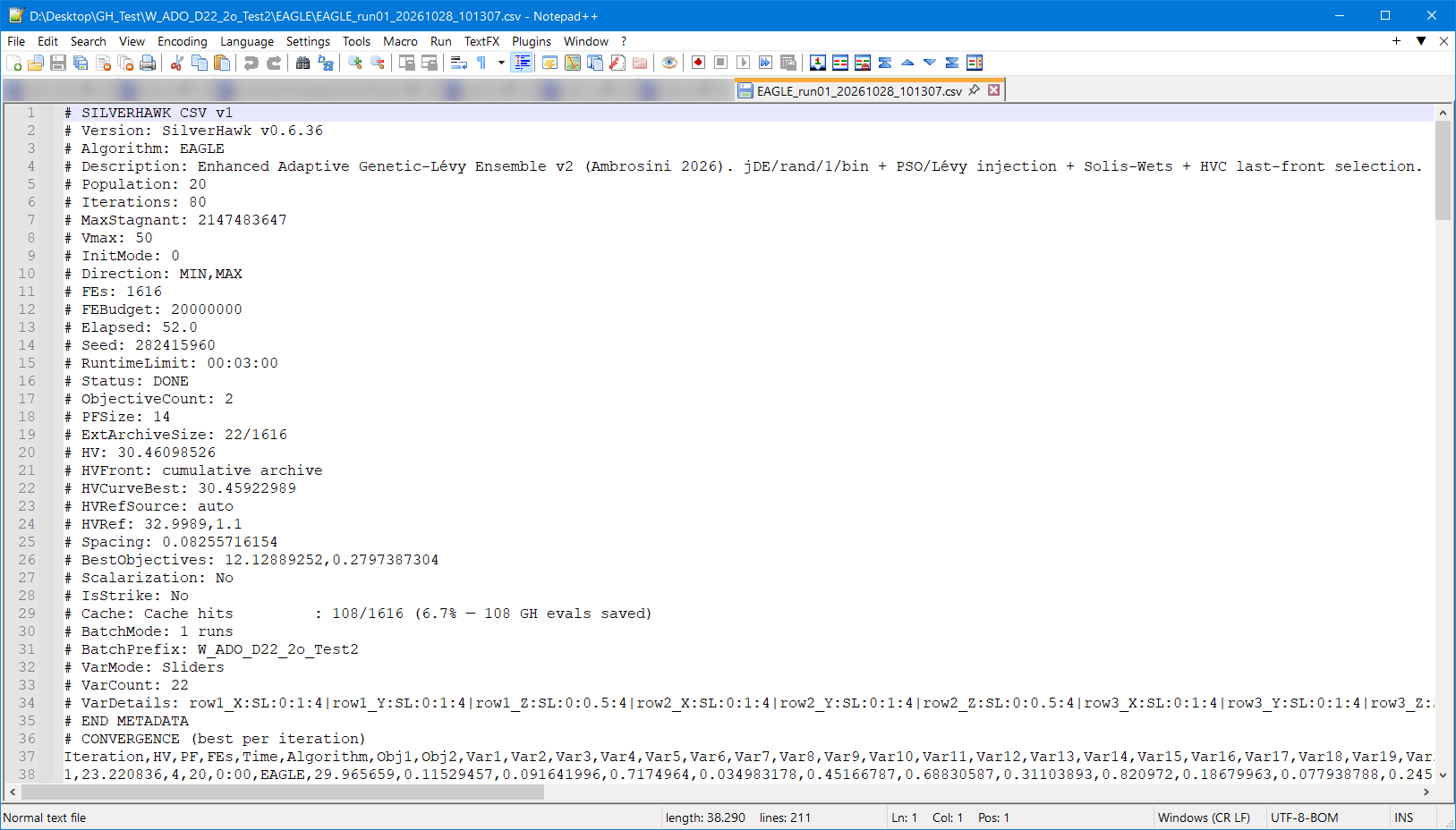
The exported CSV file starts with a metadata header where every line begins with #, followed by distinct data sections. The header makes each file completely self-describing, so that runs can be compared, audited, or reproduced without the original Grasshopper definition.
CSV Data Sections Summary
| Section | Content Description |
|---|---|
| CONVERGENCE | Best value per iteration (SO), or hypervolume, front size, evaluations, elapsed time, and active candidate algorithm per iteration (MO), with the corresponding objective and variable values. |
| PARETO FRONT | (MO only) Non-dominated solutions of the final population, with objective and gene coordinates. |
| FULL POPULATION | All individuals comprising the final population generation. |
| CUMULATIVE ARCHIVE | (MO only) All non-dominated solutions discovered across the entire duration of the run. |
| RECOMMENDED SO CONFIGURATIONS | (MO only) Solutions proposed for a single-objective choice, selected on objectives normalized between ideal and nadir points, including the knee point. |
The Text Report
The text report summarizes the algorithm, settings, evaluation budget, elapsed time, best result found, and completion status.
For STRIKE runs, it also identifies which candidate algorithm performed best and explicitly recommends the corresponding standalone solver to use for subsequent runs (AutoSelect), or reports the diagnostic outcome (Scout).
The exact same summary text is emitted dynamically through the solver component's R output port.
Reinstating a Result
SilverHawk provides three direct ways to write a solution back to the canvas number sliders:
- Table Selection: Select any row in the results table and press Reinstate.
- Interactive Double-Click: Double-click a row in the table, or double-click any point on the 2D/3D Pareto scatter plot.
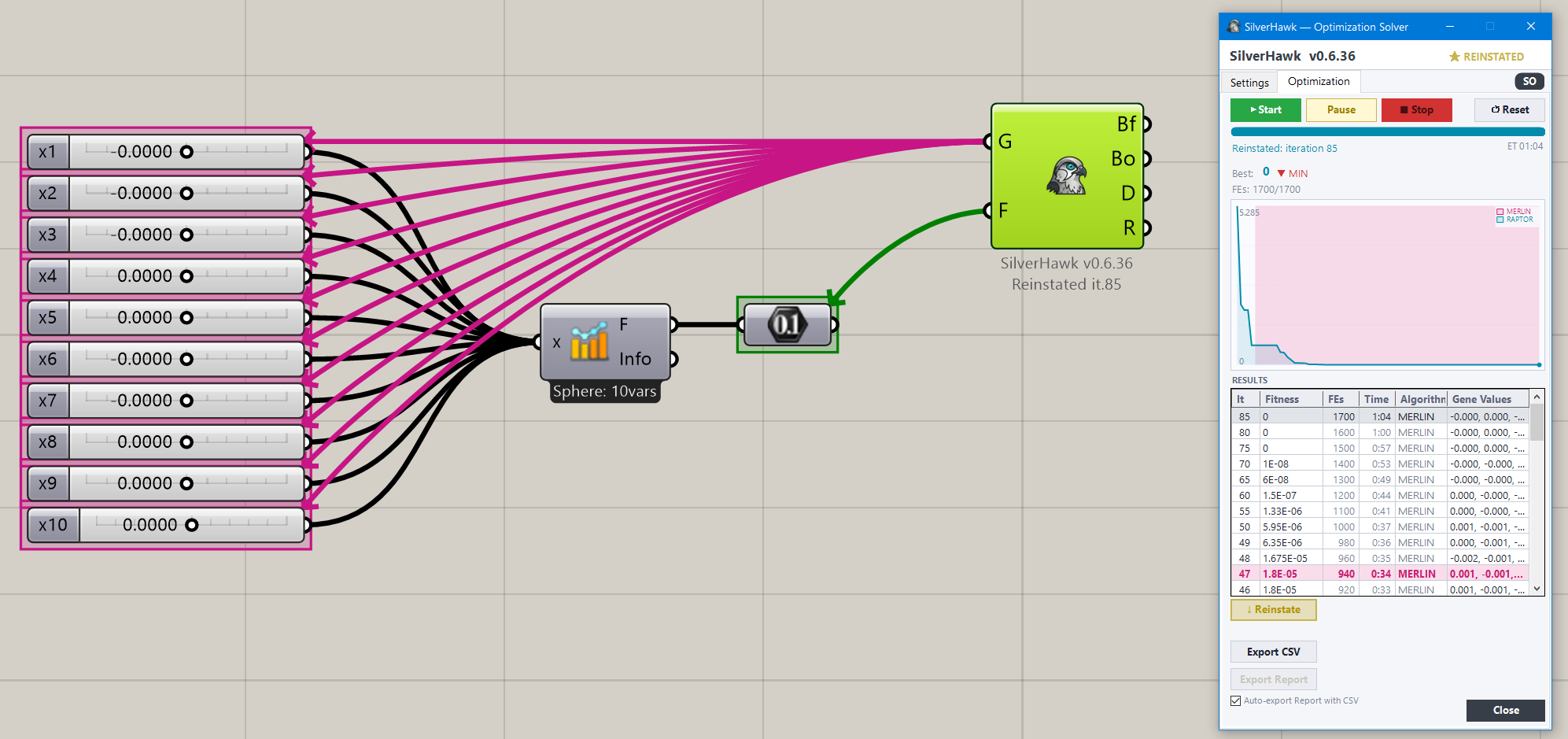
- Reinstate from CSV...: Right-click the SH_Solver component and choose Reinstate from CSV... (Figure 3).
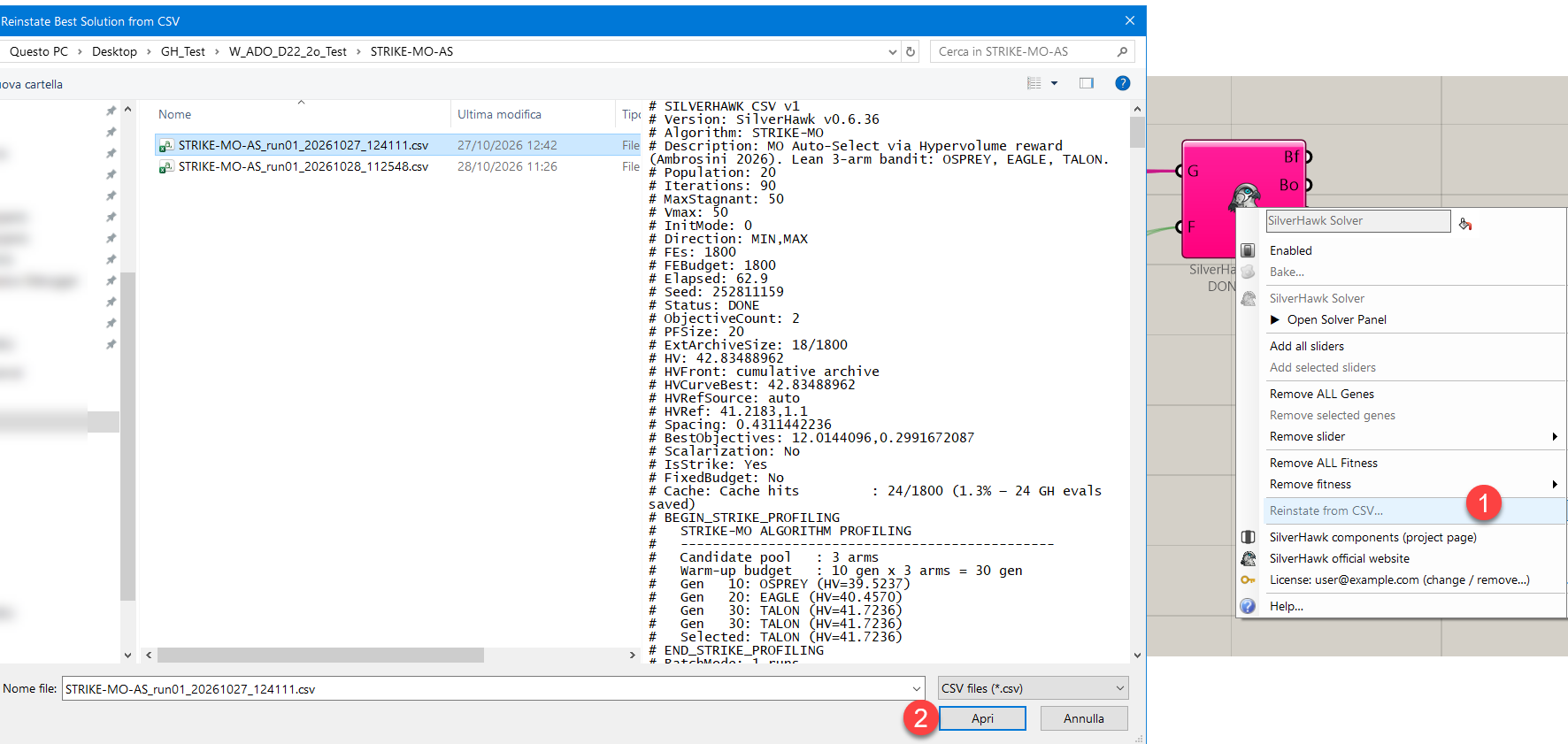
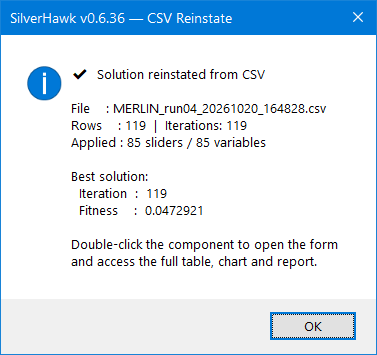
When reinstating from a CSV file, the best solution stored in the file is written to the connected sliders (or gene pools), the historical results of that run are loaded into the panel, and the solver status becomes REINSTATED.
VARIABLE COMPATIBILITY RULE
The sliders connected to the solver must match those of the run that produced the file (same count and order); the command is available only while variables are connected.
CSV Metadata Fields Reference
Every line of the CSV header begins with #. Fields appear only when applicable to the specific problem type. The first line is always # SILVERHAWK CSV v1 and the header terminates with # END METADATA.
| Group | Recorded Header Fields |
|---|---|
| Identification | Version, Algorithm, Description, Status, Seed |
| Settings | Population, Iterations, MaxStagnant, Vmax, InitMode, Direction, RuntimeLimit, FixedBudget, BatchMode, SmartStart |
| Budget & Time | FEs, FEBudget, Elapsed, Cache, Surrogate |
| Objectives | ObjectiveCount, Scalarization, BestObjectives |
| MO Indicators | PFSize, ExtArchiveSize, HV, HVFront, HVCurveBest, HVRefSource, HVRef, Spacing, IGD (benchmarks with known true front) |
| STRIKE | IsStrike and a complete profiling block tracking candidate algorithm arms and their accumulated rewards |
| Variables | VarMode, VarCount, VarDetails, ActiveVarCount, FixedVars, UnBiasMerged, FixedValues |