
Frequently Asked Questions (FAQ)
Comprehensive troubleshooting and operational answers compiled from the official SilverHawk User Guide v1.1.
Performance
Why is each evaluation slow?
At every evaluation, Grasshopper recomputes all components that depend on the sliders, whether or not they contribute to the optimization objective. Components wired to the same sliders that only produce viewport previews, baked geometry, or secondary analyses are recomputed as well.
Solution: Before launching an optimization run, detach or disable everything that is not strictly needed for calculating the objectives, hide heavy geometry, and activate the Suppress Preview eye icon in the Settings tab.
Other optimization plug-ins are on the canvas. Does it matter?
Yes. Other optimization plug-ins active on the same canvas, or reacting to the same sliders, compete for the same solutions and add substantial evaluation overhead. Run only one optimizer at a time: disable, delete, or detach other solvers from the sliders while SilverHawk is running.
How much does the eye icon help?
The speed-up depends directly on canvas overhead: with several preview-heavy components or complex NURBS/mesh operations, the speed-up can be substantial (often 5x to 20x); with light mathematical definitions, the difference is negligible.
Objectives and Results
My Pareto front looks like the worst designs.
Check the declared direction of each objective (see Objective Direction). The two most frequent causes are:
- Leaving the global direction set to Minimize for an objective that should be maximized.
- Negating an objective with
on the canvas while also declaring it MAX on SH_Objective, which cancels out and optimizes in the wrong sense.
One SH_Objective was added and the weight does not matter.
With a single objective, the problem is single-objective (SO) and weights are not used. The solver panel displays 1 obj → single-objective (SO) and provides the SO algorithm roster.
What is the difference between PF and EA?
- PF (Pareto Front): The non-dominated set of the final population generation.
- EA (External Archive): The cumulative archive of all non-dominated solutions discovered across the entire duration of the run. EA is typically larger and represents the complete Pareto discovery.
Hypervolume values differ between two runs of the same problem.
Hypervolume is mathematically comparable only between runs that share the exact same reference point and the same objective directions. Always check nadir+1 consistently when benchmarking and comparing algorithms.
How can runs be made reproducible?
Wire the SH_SlidersUnBias component and specify an integer seed greater than zero in input S. Supplying the same seed guarantees identical starting populations across different solvers. (Batch runs use independent randomized starts by design).
Panel and Canvas
The panel cannot be closed.
While an optimization run is actively in progress, the Close button is disabled to protect session integrity. Press Stop first to end the run, then close the panel.
The component cannot be deleted from the keyboard.
While the solver panel window is open, the canvas component is locked and protected against accidental keyboard deletion (Delete key). Close the panel first to delete the component.
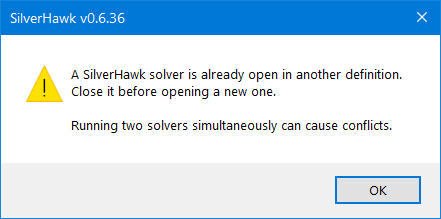
"A SilverHawk solver is already open in another definition."
Only one solver panel can be open simultaneously across all loaded definitions to prevent concurrent race conditions when writing to sliders. Close the currently open solver panel before opening another.
The run stops after 15 minutes.
15 minutes is the default runtime limit safeguard. You can increase or disable this limit under the Settings tab.
The weight shown in the panel does not match the objective.
The panel refreshes automatically within a second of an upstream canvas change; if the label remains temporarily outdated, click the Refresh button at the bottom of the panel.
Installation and License
The SilverHawk tab does not appear in Grasshopper.
- Verify that
SilverHawk.ghahas been Unblocked in Windows file properties (see Installation Guide). - Confirm the file is located in the Grasshopper libraries folder (
File → Special Folders → Components Folder). - Run the Grasshopper command
GrasshopperDeveloperSettingsto verify that the folder is included in the library search paths. - Restart Rhino completely.
The components show a license error.
The plug-in is not registered on the active Windows user account. Add any SilverHawk component to the canvas to open the registration dialog, or select License in the solver context menu. The registration key is stored locally per user:
%APPDATA%\SilverHawk\license.keyIf you need assistance or your key does not arrive, contact: license@lucianoambrosini.it.